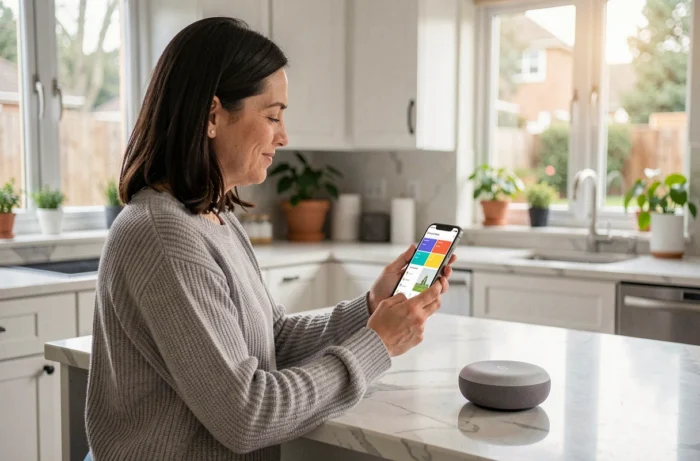
You open the Google Home app on your phone and, in the middle of the screen, colorful rectangles display the temperature of the living room, the status of a lamp, or the feed from a camera. These rectangles are the tiles. They serve as the main point of contact between you and each connected device in your home, directly from the app’s home screen.
Google Home Tile on Nest Hub Screen: What Third-Party Cameras Change
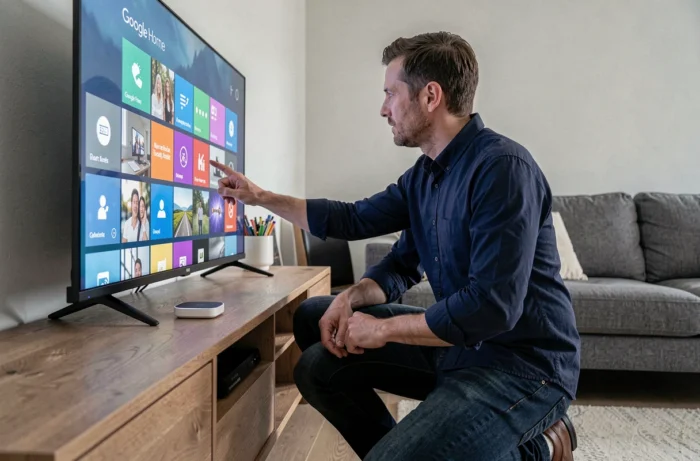
On a smartphone, a tile occupies a small portion of the screen. On a Nest Hub or Nest Hub Max, it takes on a whole new dimension. The connected screen displays larger tiles, sometimes accompanied by a visual preview.
Do you have a compatible security camera? The associated tile can display a live video feed without opening the device’s details. For Google Nest cameras, this feature has existed for a long time. For third-party models like some TP-Link Tapo (C210, C220, C500, or TD-25 Doorbell), the live feed in the tile has only recently been functional, following a bug introduced during the Public Preview of the new Google Home app in 2025.
The rollout remains gradual. Some Tapo models display the feed, while others do not yet. If your third-party camera shows only a still image or a black screen in its tile, it is not a configuration issue: it is a matter of compatibility that is still being deployed. Understanding what the Google Home tile is for also involves this technical reality, as not all camera tiles are equal depending on the brand of the device.
How a Tile Works in the Google Home App
A tile represents a device or a group of devices. It displays its status (on, off, temperature, opening percentage) and allows for quick action with a single tap: turning on a lamp, locking a door, starting playback on a speaker.
What a Tile Displays Depending on the Type of Device
The content of a tile varies. A connected bulb displays its status (on/off) and sometimes the active color. A thermostat shows the set temperature and the measured temperature. A camera may offer a preview or a feed.
- Lighting: on/off status, color, brightness adjustable by long press
- Thermostat: current temperature, setpoint, mode (heating, cooling, eco)
- Camera: still image or live feed depending on the model and compatibility
- Speaker or screen: media currently playing, control play/pause
- Smart lock: locked/unlocked status, direct locking action
Quick Interaction or Detailed View
A short tap triggers the main action (turn on, turn off, lock). A long tap opens the full device details with all available settings: scheduling, history, advanced settings.
This two-level logic is designed to limit interactions. You control most of your devices without ever leaving the home screen of the app.
Customizing the Display of Google Home Tiles on Android and iOS
The order of tiles on the home screen is not fixed. You can modify it to place the most used devices at the top of the screen.
To reorganize, open the Google Home app, press and hold a tile, then drag it to the desired position. The tiles also group by room: kitchen, living room, bedroom. If you have correctly assigned each device to a room during setup, the tiles will appear in distinct sections.
The app also offers a Favorites mode. Devices marked as favorites automatically rise to the top of the main screen. This is useful when the smart home system has ten devices or more, and only three or four are used daily.
Google Home Tiles and Automations: Control Without Touching the Screen
Tiles are not only for manual interaction. They also reflect the status of the automations you have configured.
Have you created a “Good Evening” routine that turns off all the lights, locks the door, and lowers the thermostat? The relevant tiles change state in real-time as soon as the routine is triggered, either by voice command or at a scheduled time. The tile becomes a visual indicator of what is happening in your home, not just a button.
Script Editor and Linked Tiles
Google has begun rolling out a script editor in the Home app. This system allows for more refined conditions than a simple routine (for example: if the camera detects motion after 11 PM, turn on the garden spotlight). The tiles of the devices involved in a script reflect the state changes caused by these advanced automations.
This evolution brings Google Home closer to more technical smart home platforms while maintaining accessible visual control from the home screen.
Current Limitations of Google Home Tiles
Despite their usefulness, tiles have constraints that need to be understood before building an entire system around the app.
- The compatibility of live video feeds depends on the camera manufacturer and Google’s deployment schedule
- Some Matter or Thread devices display a functional tile but without all the options available in the manufacturer’s app
- The number of visible tiles without scrolling remains limited on smartphones, making customization and the favorites system even more useful
The experience varies depending on the mobile used: a large Android screen displays more tiles simultaneously than a standard iPhone. On a Nest Hub, the display size largely compensates for this limitation.
Google Home tiles simplify daily life when the device ecosystem remains coherent. Prioritizing devices with confirmed compatibility with the app helps avoid unpleasant surprises, especially for third-party cameras whose live feed still depends on Google’s update pace.